Update: You may have to set your environment variable on the windows system via Administrator Powershell.
[Environment]::SetEnvironmentVariable("HOME", "C:\Users\" + $env:USERNAME, "User")And then clear the Chrome Binary Path to be empty
The steps below work for me. I do not know why they work, but it works. Tedious, but walk with me.
- Open Antigravity IDE on Windows.
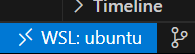
- You’ve opened your project/folder in WSL i.e you see this at the bottom left corner of the IDE
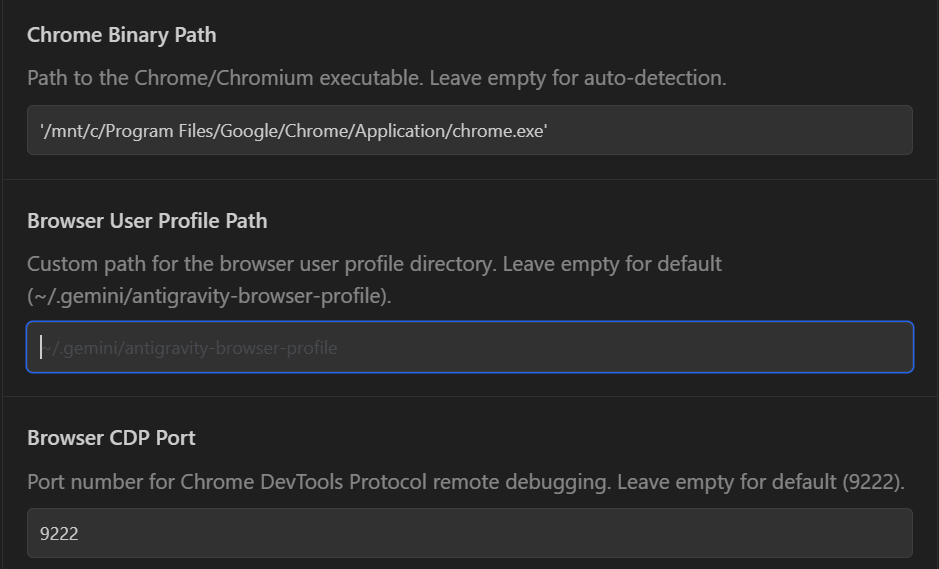
- In your antigravity user settings, you have the path pointing to your Windows chrome, the port, and profile looking like this:
- Open your normal chrome instance. Just like the normal way you use to browse. Let’s call it Primary Chrome
- Enter
chrome://inspect/#devicesin the address bar, and you get a page like this:
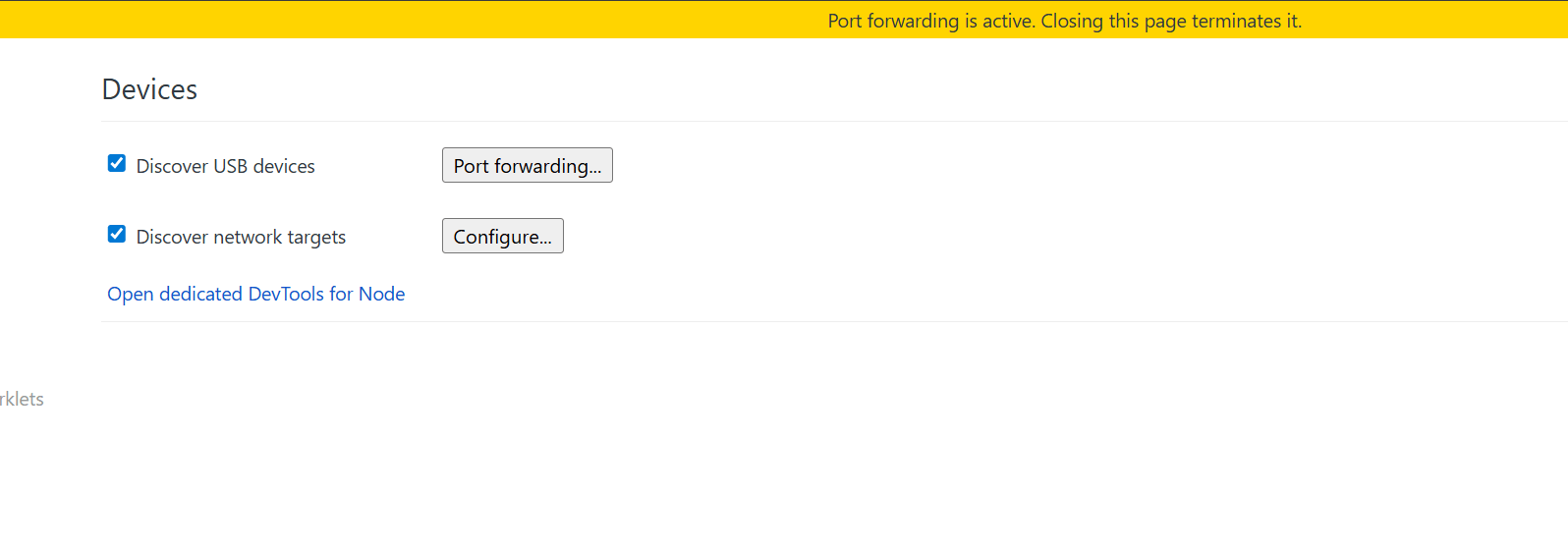
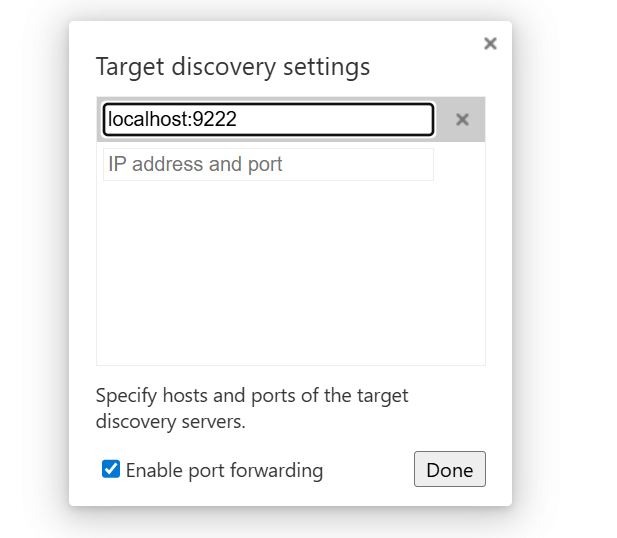
- Click on the Configure, ensure “Enable Port Forwarding” is ticked
- Now, open Powershell (doesn’t have to be run as Admin)
- Enter this:
Start-Process "C:\Program Files\Google\Chrome\Application\chrome.exe" -ArgumentList "--remote-debugging-port=9222", "--user-data-dir=C:\TempProfile" - The above will open ANOTHER, separate Chrome instance. Let’s call it Secondary Chrome
- Go back to the Primary Chrome, and in the
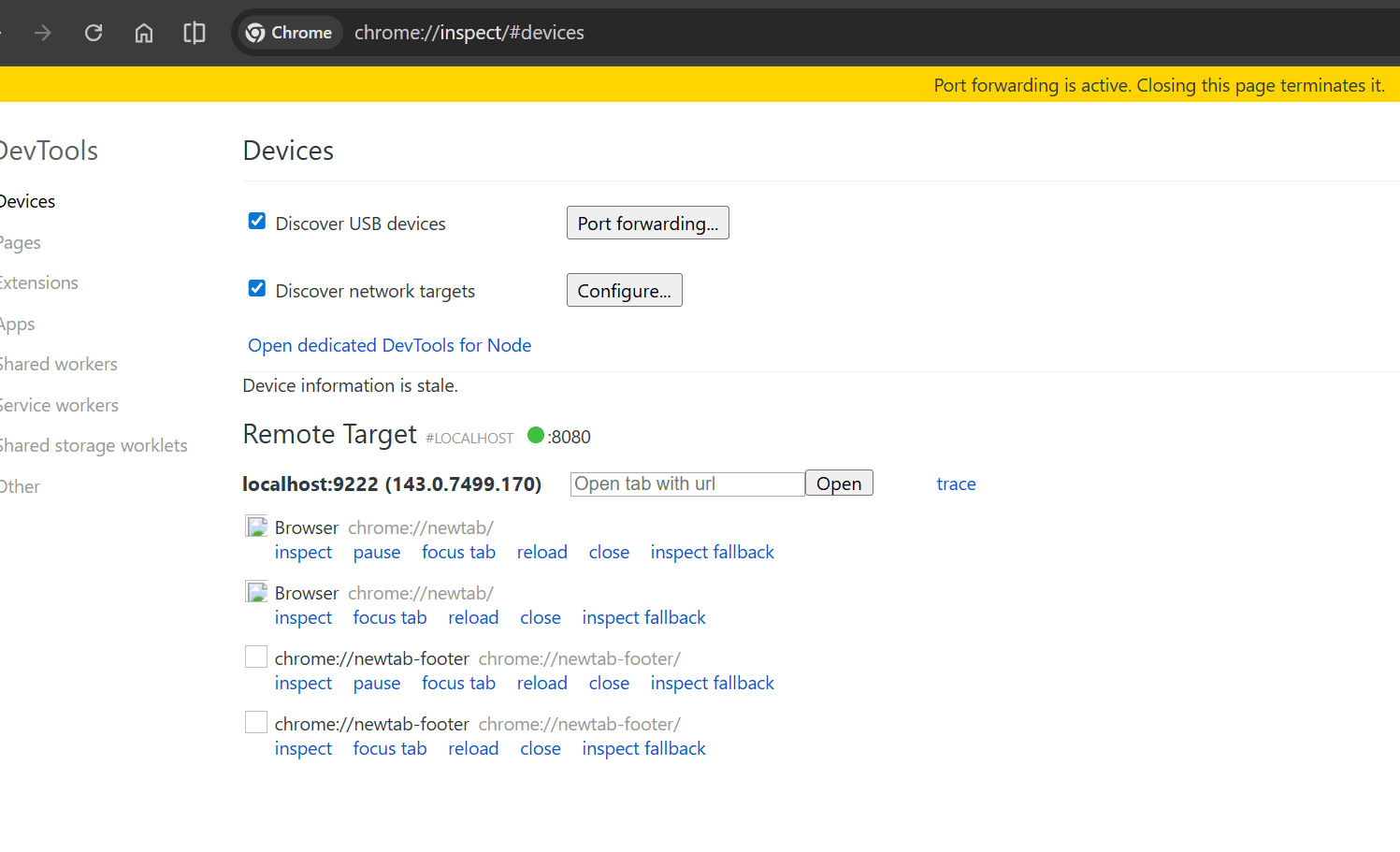
chrome://inspect/#devicestab, you should see the Secondary Chrome instance remote debugging details show up, like so:
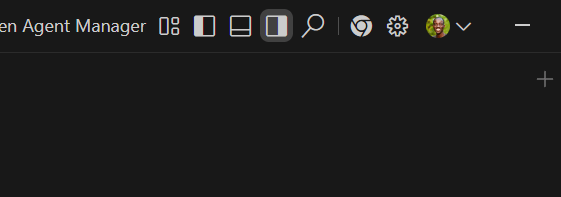
- Now, go back to your Antigravity IDE, and click on the Chrome browser icon
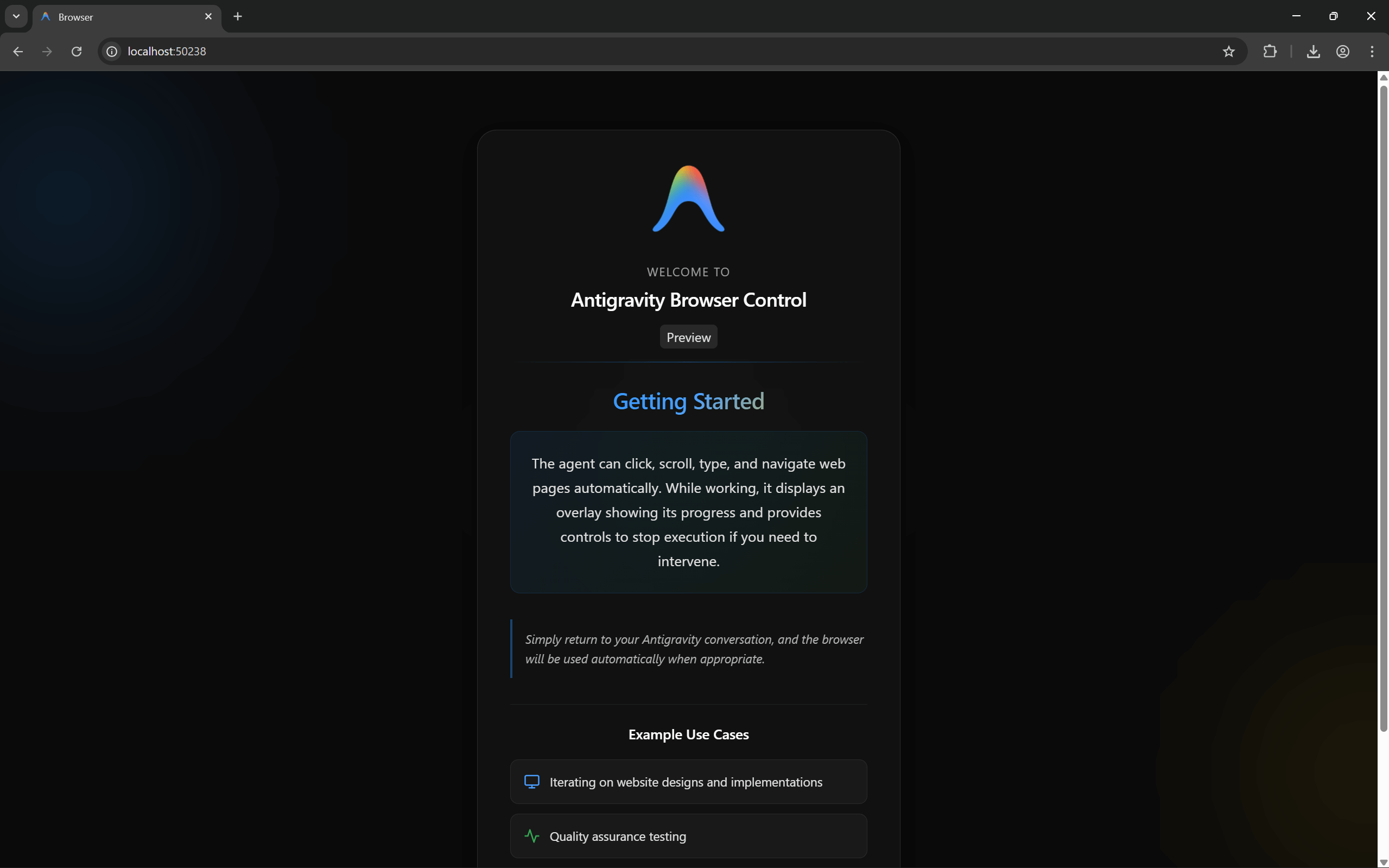
- You should see this now IF you have already installed the Antigravity Extension
Download Interrupted. Can’t download the Antigravity extension?
Ok, I gotcha!
- In your Primary Chrome, open the Antigravity extension page and install
- In your Primary Chrome, open
chrome://versionand copy the path to the default profile directory. - Open your file explorer, and enter the copied path
- Look for the
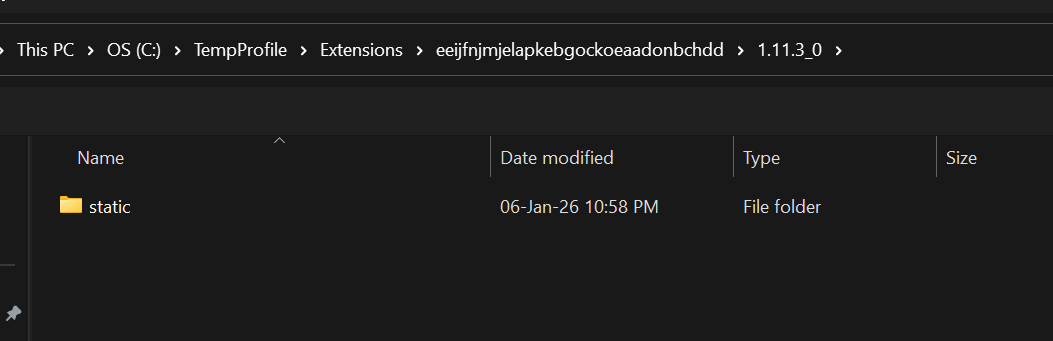
Extensionsfolder, which should have the Antigravity extension folder in there. The folder names are the IDs of the extension. At the time of writing this article, it waseeijfnjmjelapkebgockoeaadonbchdd
NOTE: the extension ID is not set in stone. It may be different by the time you’re reading this. Just know the folders are named according to the extension
- Copy the extension folder.
- Remember in starting the Secondary Chrome instance via the Powershell command, you indicated the user directory. Go into that directory, in the case of the above,
C:\TempProfile, and create a new folder Extensions (if it doesn’t already exist) - Paste the Antigravity extension folder you copied from Primary Chrome folder into the Secondary Chrome extensions folder.
- Now in the Secondary Chrome browser,
- go to the Extensions page
- Enable Developer mode
- Click on Load Unpacked, and browse to the Secondary Chrome Extensions folder, and load, like this:
- Enable the extension, and you should see a page like the screenshot from earlier.
To double-check if everything is working, run a prompt in the Antigravity IDE like, “Open google.com and search Antigravity”
Below is how it worked for me:
